

Download
- macOS
- Windows
- Linux
Requires macOS 13 or later.Open the
Apple Silicon
M-series Macs
Intel
Older Macs
.dmg and drag Enclave to Applications.
Updates
- macOS and Windows: updates download in the background. Click Install Now, or quit the app to install.
- Linux: click Download to get the new AppImage, then replace your old one.

Switch sessions from the keyboard
Hold Option (Alt on Windows and Linux) and press ↓ or ↑ to move a highlight through the chats in the sidebar, in the order they’re listed. Release the key to open the highlighted chat. It also works while you type in the composer. The sidebar must be expanded.Run sessions on your computer
In the desktop app, a Research session can run on your computer, in a folder you pick, instead of in a cloud sandbox. Use it to work on code you already have checked out, with your own tools, network, and git sign-in.1
Pick Local
In a new Research session, click the sandbox picker in the composer and choose Local under Sandbox environment.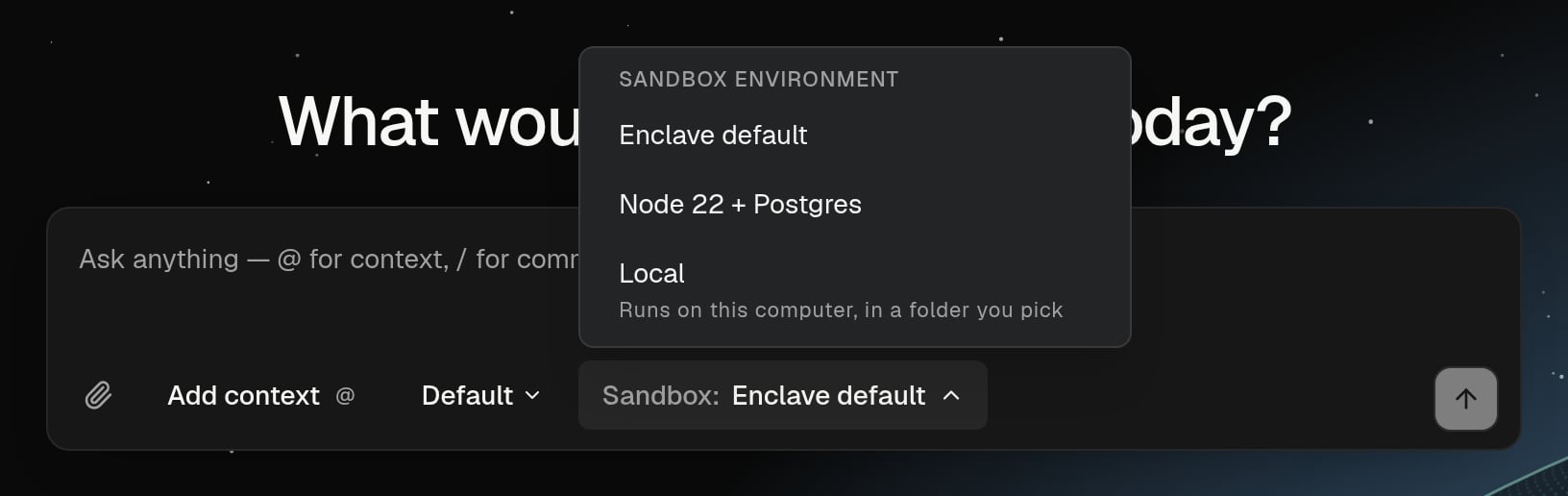
2
Choose a folder
Pick a folder in the dialog that opens, then send your first message. Research works in that folder.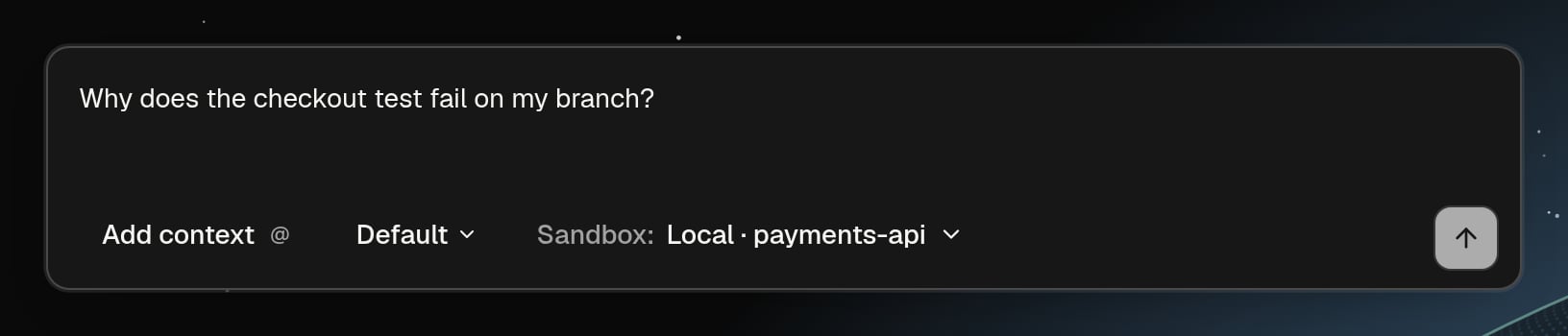
- Keep the desktop app open while Research works. When it’s closed, Research can’t reach the folder.
- Research clones and pushes with the
gitand sign-in on your computer. - Only you can write in the session. Others in it see it read-only.
- If you open the session in a browser, on your phone, or in the desktop app on another computer, it moves to a cloud sandbox for good. Your folder’s files aren’t there, so Research clones what it needs.
Limitations
- Connect Slack from your browser. The desktop app can’t complete Slack’s sign-in.