

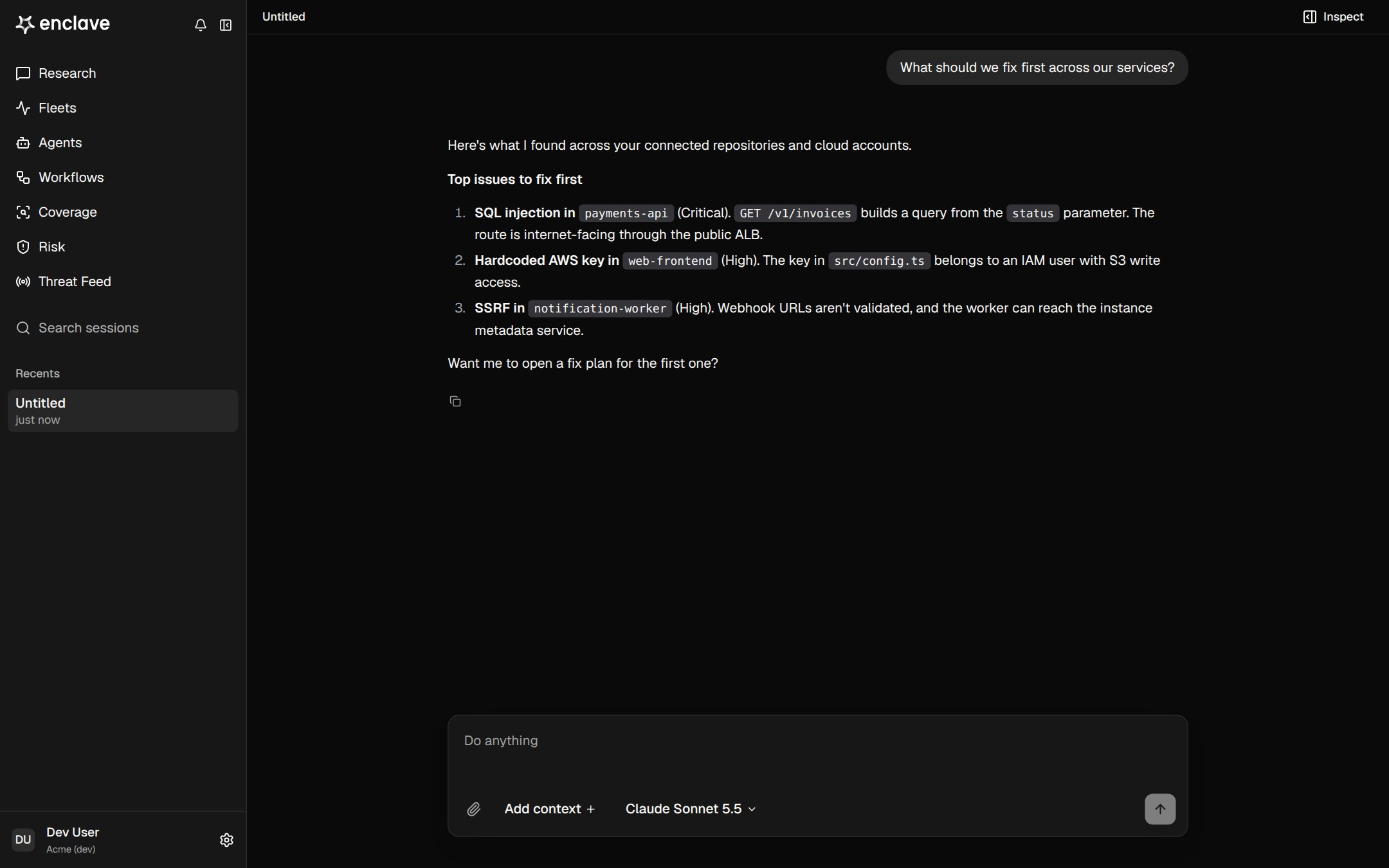
Start a session
Click Research in the sidebar, type your request, and press Enter. Recent work below the composer lists your latest sessions. Other places that start a session:- Check if we’re vulnerable on a Threat Feed CVE.
- Run now on a workflow.
- Start hunt on a repository in Coverage.
- Mentioning @Enclave in Slack.
Add context
Type@ or click Add context to attach the exact assets and findings you mean. A message can carry up to 10 attachments.
Upload files
Click the paperclip to upload files or a folder, such as a log or a config file. Each upload can hold up to 1,000 files and 50 MB. Files go into the session’s sandbox and aren’t stored long term.Uploads aren’t available on bring-your-own-cloud deployments.
Choose a model
Use the model picker next to Add context. Default uses Claude Sonnet 5.5. You can also pick Claude Opus 5.5, GPT-6 Luna, GPT-6.1 Sol, GPT-5.6 Terra, Kimi K3, GLM 5.3, or DeepSeek V4.1 Flash. The choice is saved with the session and applies from the next reply.Slash commands
Type/ to see all commands.
While Enclave works
When Enclave finishes, its steps fold into a Worked for summary. Expand it to see each step.- Click Stop to stop a reply.
- Send a message mid-reply to queue it. It sends when the reply finishes.
- Click a file reference to open it beside the conversation, or a finding chip to open the finding.
Limits
- 20 messages per minute.
- A single reply can run for up to 25 minutes.
- Each message uses credits.