

Enclave MCP server
Most clients accept this configuration:
mcp.json
The server supports Streamable HTTP only. It doesn’t offer the older SSE transport, so use a client that can connect to a remote HTTP server.
Access and permissions
You need an Enclave account and membership in an organization. Organization-scoped tools require your organization to have a usable plan, even for read calls. A trial counts as a usable plan. This requirement does not apply to public tools. Each OAuth connection or MCP key acts as you in one organization. Enclave fixes that organization when you authorize the connection or create the key, using the organization you are working in at that moment. Tool calls can’t switch organizations. To connect another organization, switch to it in Enclave, then authorize another connection or create another key. Your role decides which tools you can use:
Custom roles need the matching permissions. Only Owners and Admins can save triggers, because a custom role can’t be given
workflow_trigger:write. You only reach resources you can see in Enclave. Anything outside the connected organization, or hidden from you, returns not found.
Removing you from an organization revokes your OAuth connections and MCP keys for it.
Authentication
MCP keys work only with Enclave’s MCP server. The Enclave REST API doesn’t accept them.
Create an MCP key
You need access to Settings in the organization you want to connect.1
Create the key
Open Settings → MCP in Enclave. Under API Keys, click Create Key. Enter a Name, choose an Expiration, and click Create Key.
2
Copy the key
Copy the key when it appears. Enclave shows it only once. Below the key, choose your client to copy its setup command or configuration with the key already in it.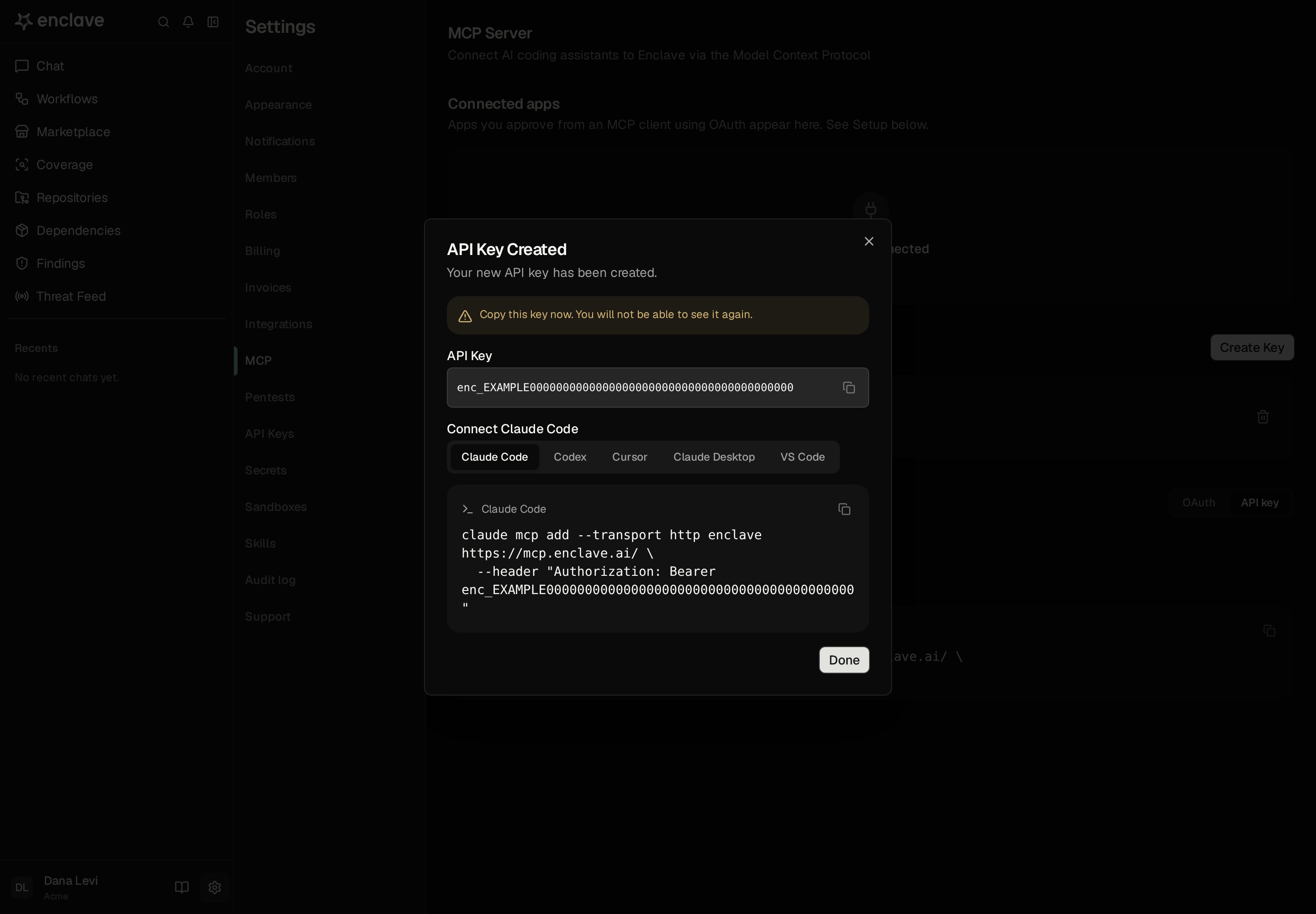
Revoke a connected app
Under Connected apps, Settings → MCP lists the apps you approved with OAuth in the organization you’re working in, with when each one connected and was last active. To revoke one, click Revoke next to it and confirm. The app loses access and has to be connected again. Removing Enclave from your client doesn’t end its access, so revoke the app here too.Setup instructions
Settings → MCP in Enclave also shows these instructions under Setup. Select OAuth or API key and your client, then copy them.- Claude Code
- Codex
- Cursor
- VS Code
- Claude
With OAuth:In Claude Code, run
/mcp, select enclave, and choose Authenticate. Sign in to Enclave in the browser that opens and approve the connection.With an MCP key:https://mcp.enclave.ai/ and sign in with OAuth, or send an MCP key in the Authorization: Bearer header.
Available tools
Every tool acts in the connected organization, except the Threat Feed and CVE analysis tools, which read data that’s the same for everyone. Read tools never change data, so your client can allow them without allowing changes.- Without a status filter,
listreturns only Confirmed findings. Proof of concept appears only for Confirmed findings. - Status values map to Enclave’s statuses:
unverified(Needs evidence),verified(Confirmed),resolved(Resolved),invalid(Inactive), anddiscarded(Dismissed). - Name a pull request as
<repository-slug>#<number>. - Built-in workflows are read-only. Enabled triggers start runs, so saving a workflow with triggers can start one.
- Starting a run uses credits. You can start a workflow that takes no inputs, or whose inputs are findings or repositories. Name each finding by its short ID, such as
AbCd12, and each repository by its slug fromlist_repos. Each repository input takes one repository. Start a workflow that takes a pull request or attack surface in Enclave. - Deleting a record is permanent.
- Reading the Threat Feed needs no permission.
enclave_cve_readreturns analyses Enclave has already finished. It never starts research or uses credits. To start one, see Request an analysis. - Listing repositories and reading your account need no permission beyond membership.
Example prompts
- “List my Confirmed critical and high findings in Enclave.”
- “Read Enclave finding
AbCd12and fix it in this repository.” - “Mark finding
AbCd12as Resolved with the reason ‘Fixed in pull request 123’.” - “Read the Enclave workflow rules, then create a workflow that runs a secret sweep on
acme/apievery Monday at 08:00 UTC.” - “Start my Enclave finding triage workflow on finding
AbCd12, then show me its output when it finishes.” - “Is CVE-2026-1234 in Enclave’s Threat Feed? Summarize Enclave’s analysis of it.”
- “Which of my cloud assets in Enclave are reachable from the internet?”
Troubleshooting
The server rejects my key (HTTP 401)
The server rejects my key (HTTP 401)
The key has expired or was revoked, or you were removed from its organization. Create a new key in the organization you want to connect, and update your client.Some clients, such as Claude Code, don’t fall back to OAuth while a key is configured. To switch to OAuth, remove the server from your client and add it again without the
Authorization header.A finding or workflow I can see in Enclave returns not found
A finding or workflow I can see in Enclave returns not found
Your connection acts in a different organization. A connection stays in the organization you were working in when you authorized it or created its key. Switch to the right organization in Enclave, then connect again.
An action is refused
An action is refused
Your role doesn’t have the permission the action needs. See Access and permissions, or ask an Owner or Admin of your organization.
My client can't connect at all
My client can't connect at all
Check that your client supports remote MCP servers over Streamable HTTP. The server doesn’t offer the older SSE transport.